DirectAdmin offers two distinct operations.
First: restore backups created automatically by the system.
Second: generate your own manual backup to download or migrate the account.
Below is the complete step-by-step guide, suitable for both beginners and advanced users, with insertion points for the provided images.
1. ACCESSING JETBACKUP INSIDE DIRECTADMIN
Depending on the panel theme, JetBackup may appear as a standalone icon or inside the Extra Features group.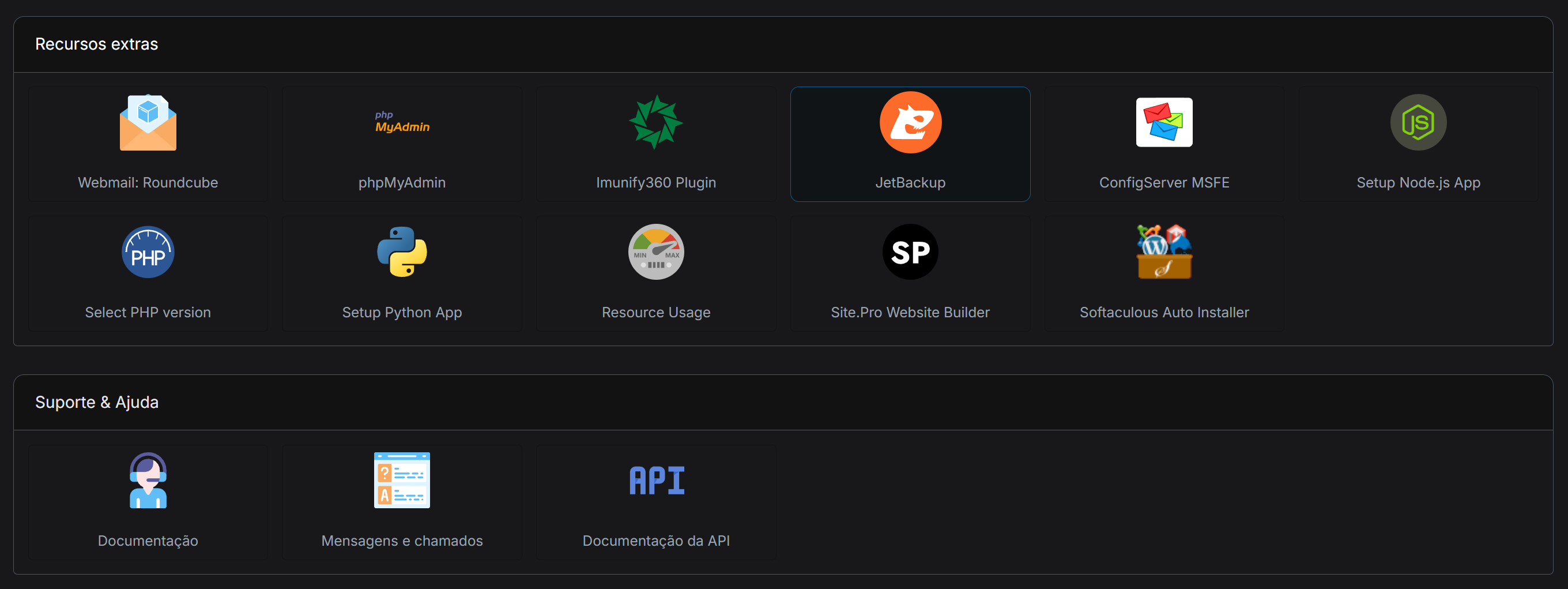
When you click on it, you are taken to the main JetBackup screen inside DirectAdmin.
This section shows: total backups, alerts, account size and all restoration modules.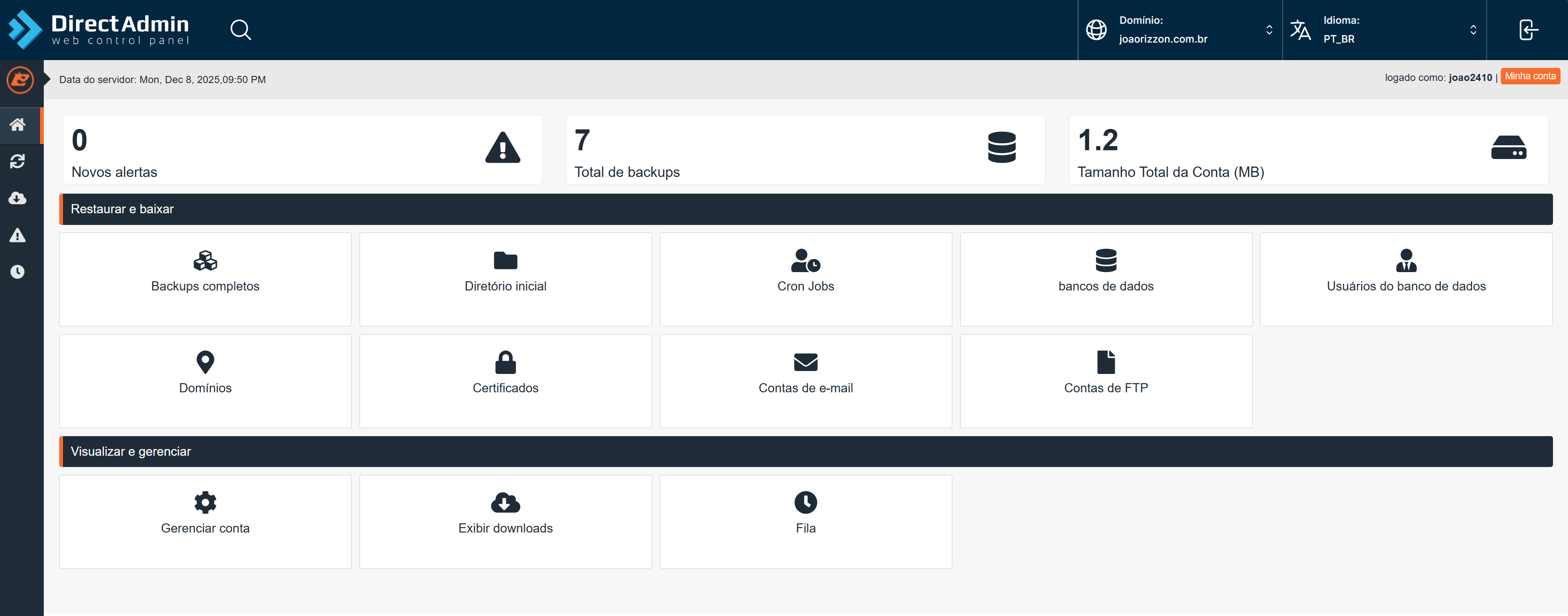
2. RESTORING THE FULL ACCOUNT
Full restoration returns the entire account to the state of the selected backup.
It recovers files, databases, emails, domains, and all hosting settings.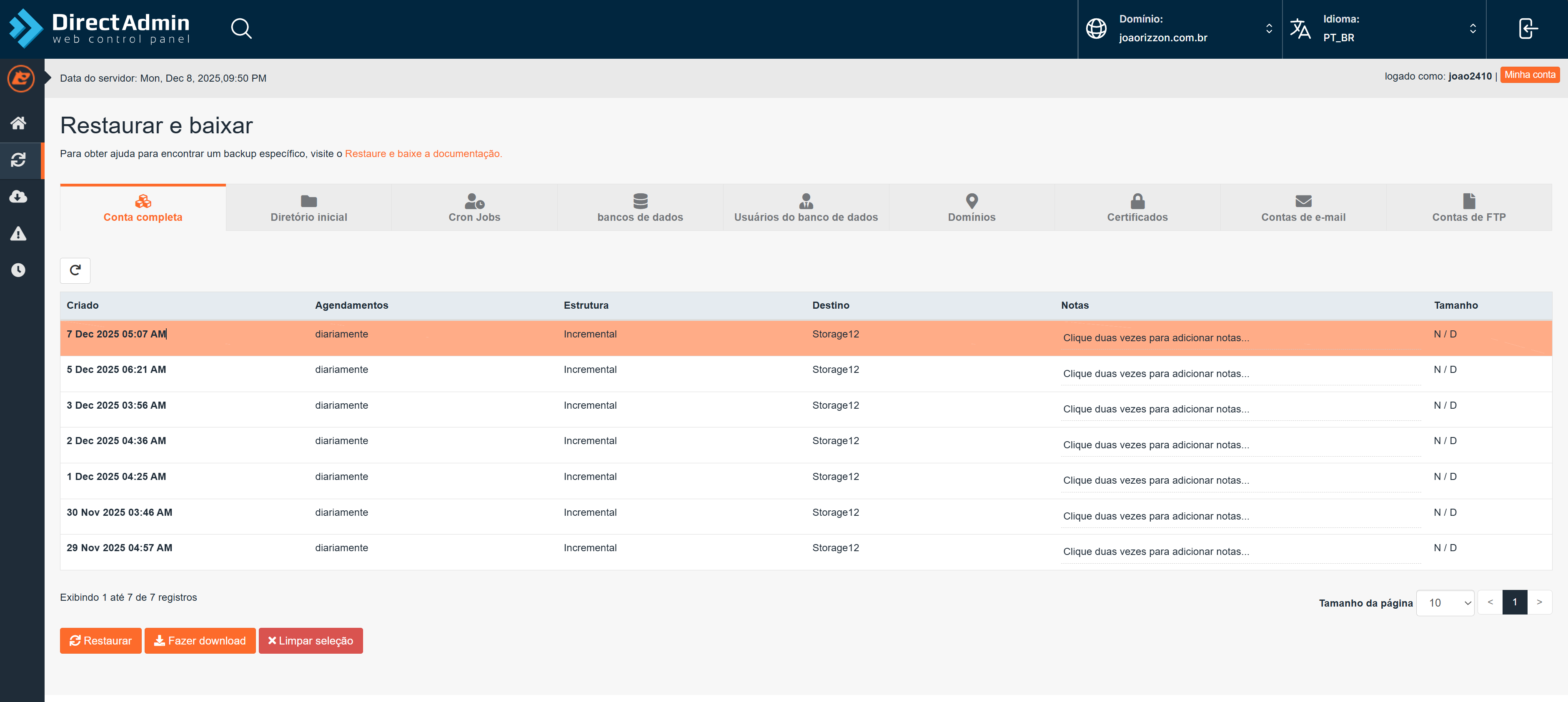
Steps:
-
Click on Full Backups.
-
Select the desired date.
-
Click Restore.
-
Confirm.
The request enters the queue and will be processed even if you leave the panel.
3. RESTORING THE HOME DIRECTORY (SITE FILES)
To recover only the site files, without affecting the database or email accounts, use Home Directory.
The list displays all available backups, organized by date.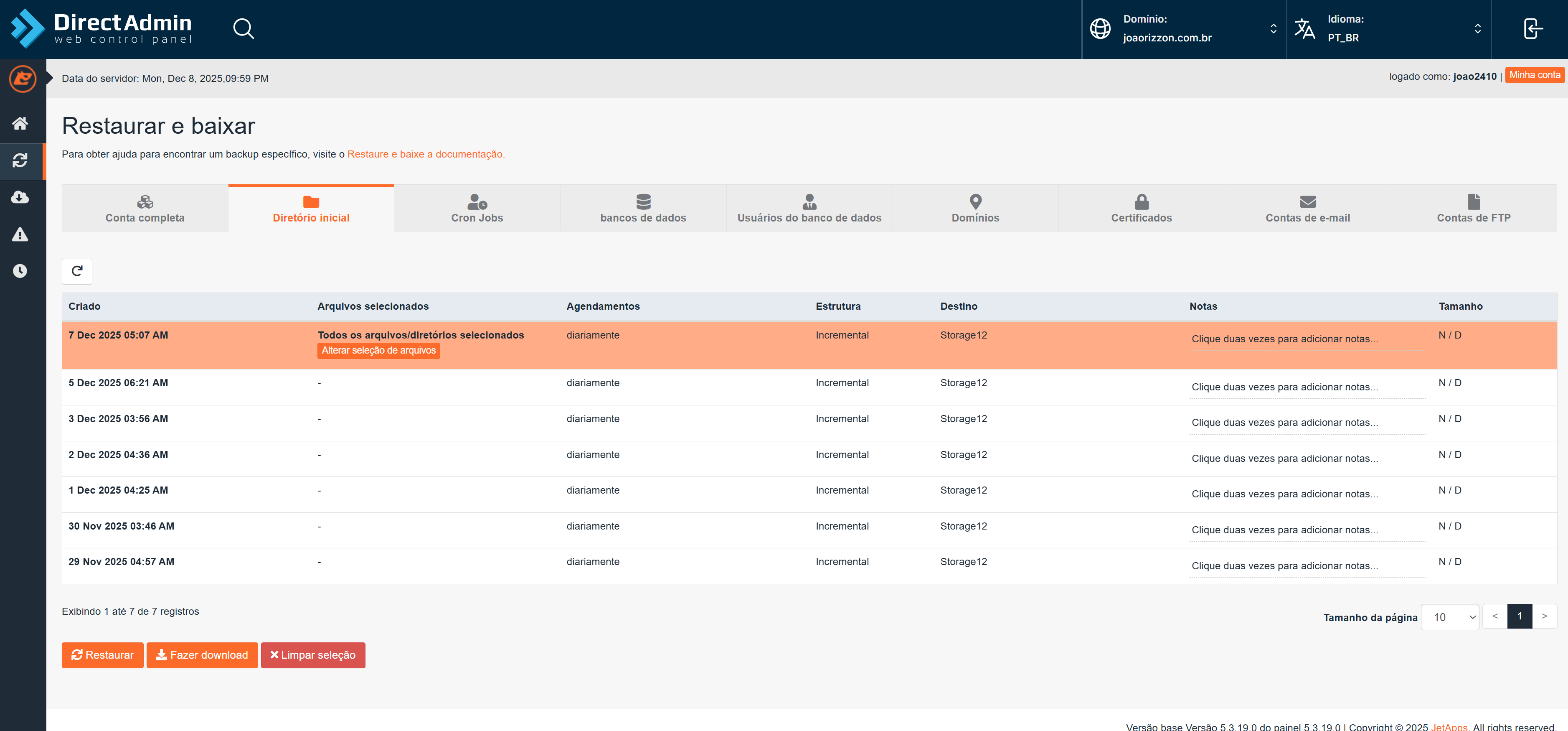
Select the backup and click Restore.
Note: unlike cPanel, DirectAdmin does not open an advanced file selection window. Everything inside the home directory will be overwritten.
4. RESTORING CRON JOBS
If scheduled tasks were deleted or modified:
-
Click on Cron Jobs.
-
Choose the date.
-
Click Restore.
Use this when automations stop running or disappear from the panel.
5. RESTORING DATABASES
Used to correct system logic errors, corrupted tables, or incorrect modifications.
Steps:
-
Click on Databases.
-
Select the desired database.
-
Choose the backup.
-
Click Restore.
This overwrites all database content. It does not affect site files.
6. RESTORING DATABASE USERS
Use this when permissions, passwords, or users have been altered.
The module restores the original state of the user according to the backup.
7. RESTORING DOMAINS
If a secondary domain was removed or lost configuration:
-
Click on Domains.
-
Select the domain and the backup.
-
Execute the restoration.
8. RESTORING SSL CERTIFICATES
Fixes certificates that were removed, corrupted, or replaced.
9. RESTORING EMAIL ACCOUNTS
Recovers inboxes, folders, and messages.
-
Click on Email Accounts.
-
Select the backup.
-
Confirm the restoration.
10. RESTORING FTP ACCOUNTS
Restores deleted or modified FTP accounts.
11. MANAGEMENT TOOLS
At the bottom:
Manage account
Downloads
Queue
Note: the Downloads tab may appear empty. This is normal when no manual backup has been generated.
12. CREATING A MANUAL BACKUP IN DIRECTADMIN (OUTSIDE JETBACKUP)
If you want to generate a complete backup of the account for download or migration, use the Create/Restore Backups menu in DirectAdmin.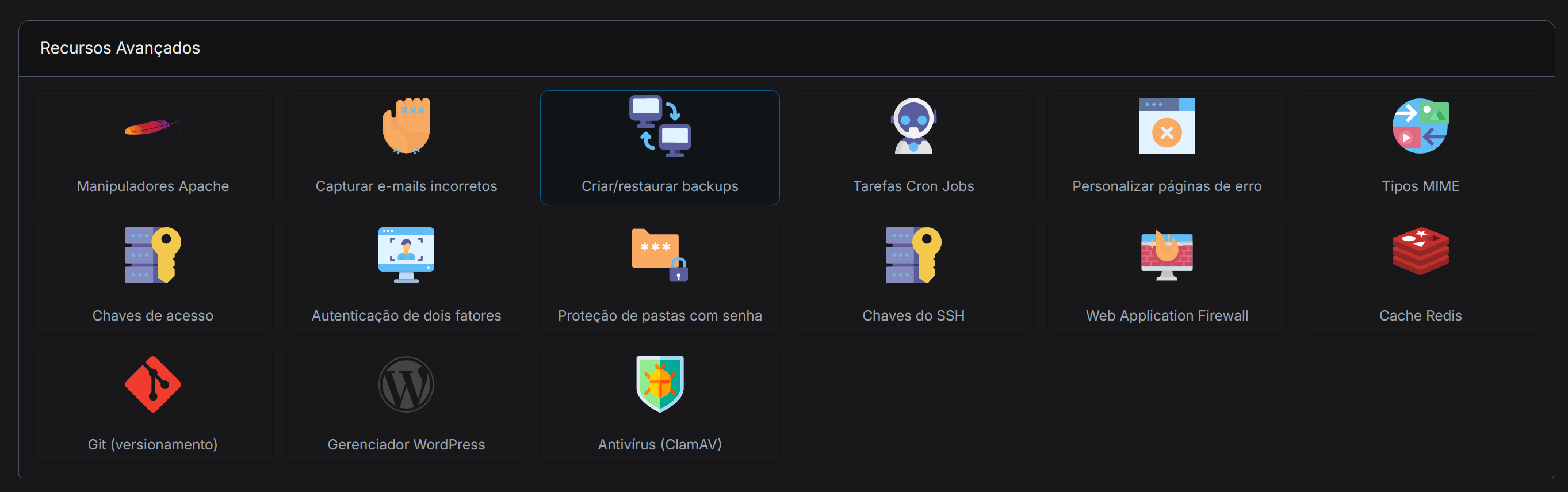
Steps:
-
Access Create/Restore Backups.
-
Click Create Backup.
-
Select the desired domains.
-
Select what will be included:
Site data
Domain folders
Subdomains
Emails
Databases
Settings -
Confirm.
The system generates a compressed file containing everything in the account.
Use this when migrating to another server or saving a local backup.
CONCLUSION
Automatic restorations are handled through JetBackup.
Manual exports and full backups are done through DirectAdmin’s Create/Restore Backups.